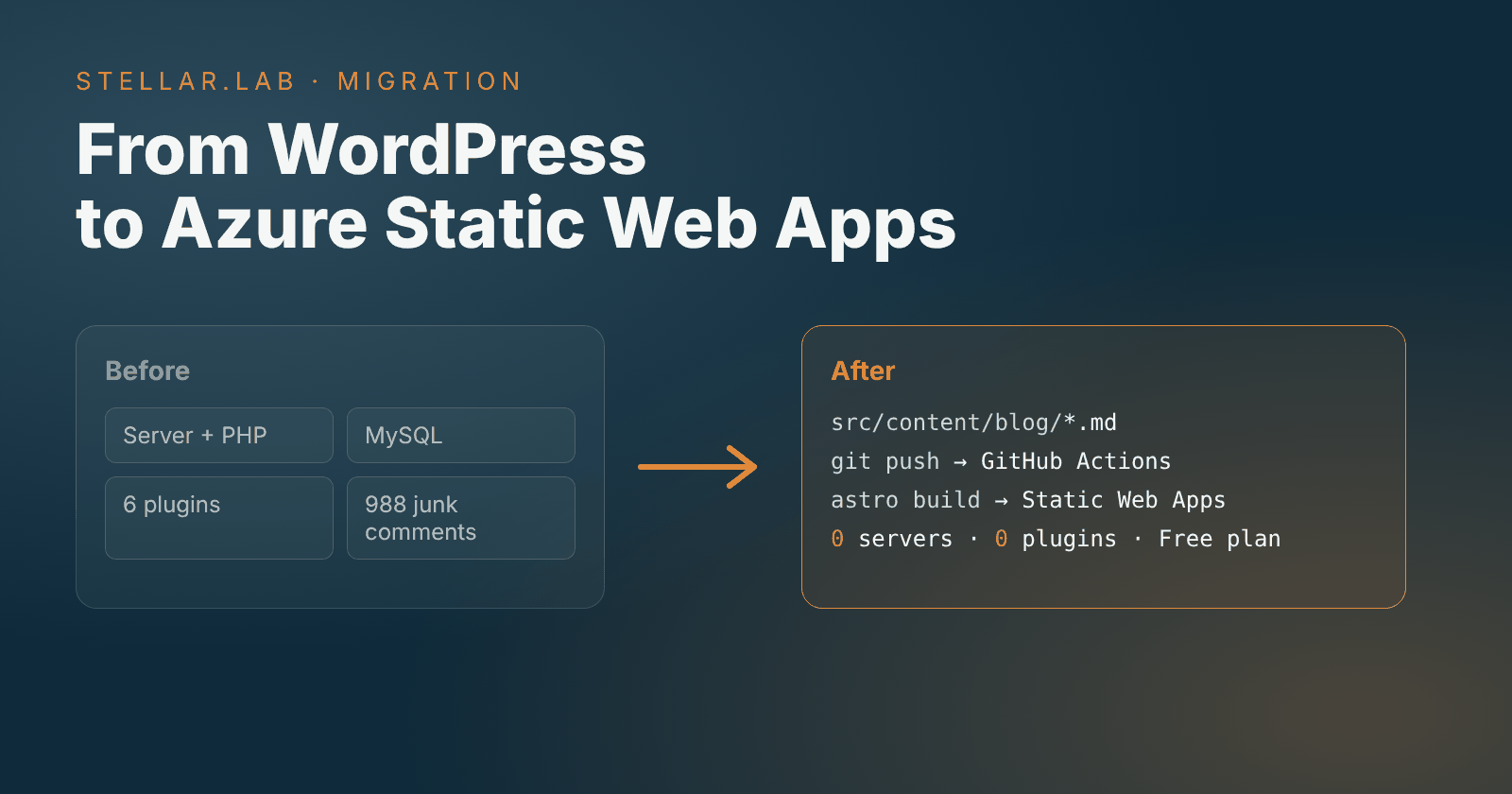

Stellarlab has been running on WordPress since 2020. It has worked well, and I don’t have much to complain about. But for a blog with eight published articles, I have been running a database, PHP and a set of plugins just to show some text and images.
So I have moved the blog to Astro and Azure Static Web Apps. In this article I go through the steps, what I learned along the way and what I would do the same way again. I used Claude as an assistant for much of the conversion and the setup, while I made the decisions.
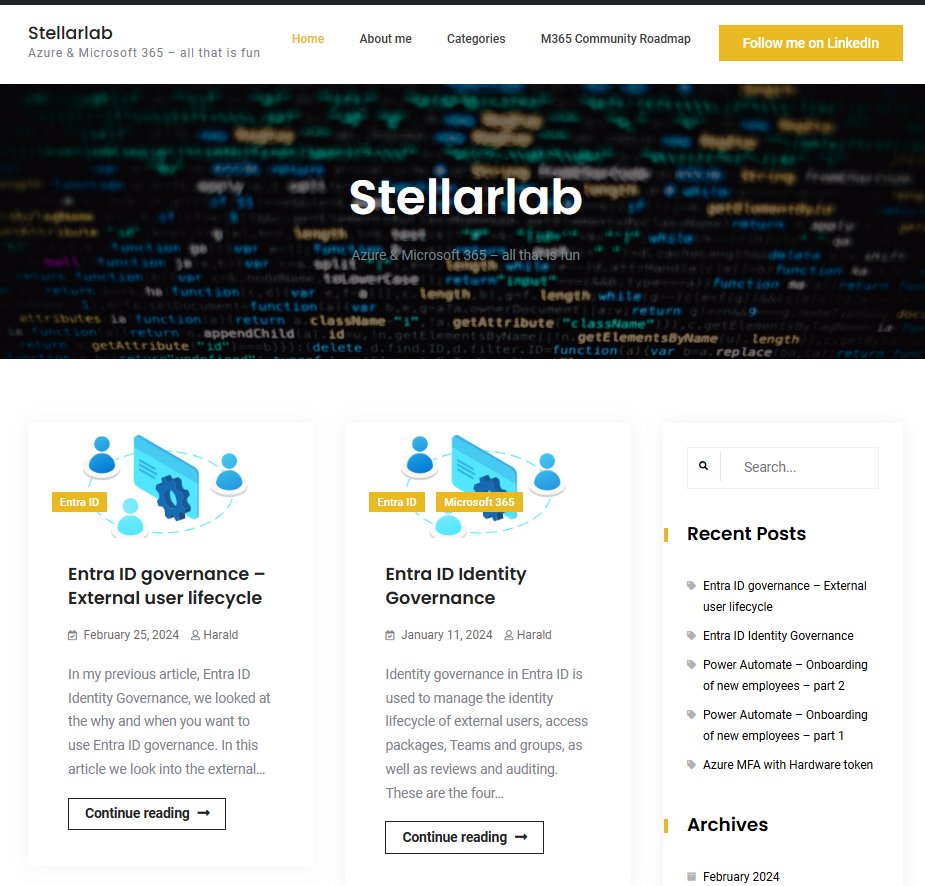
The old Stellarlab on WordPress
Why move away from WordPress?
It wasn’t because WordPress was difficult to maintain or to work with. It’s more that I feel I have more freedom with Astro and Azure Static Web Apps, without having to hook up a database for a simple website.
- Freedom. The site is just files in a Git repo. I can change the layout, the components and how things are built without working around a theme or a plugin.
- No database for a simple site. Articles are Markdown files, and the site is built to plain HTML and CSS.
- Room to grow. If I need some functionality later, I can build on it with Azure and Microsoft 365. Static Web Apps has support for APIs with Azure Functions and authentication with Entra ID, so the options are there when I need them.
- Easy to change with coding tools. A simple site is a small set of files. That makes it easy to make changes with the help of a coding assistant like Claude or GitHub Copilot, and to see exactly what was changed before it goes live.
- It’s free. The Free plan of Static Web Apps covers a blog like this. That doesn’t hurt either.
Step 1 – What is actually in the database?
Before choosing anything, I wanted to know what I was moving. I exported the database from Cloudways with Adminer, a 5 MB MySQL dump, and went through it.
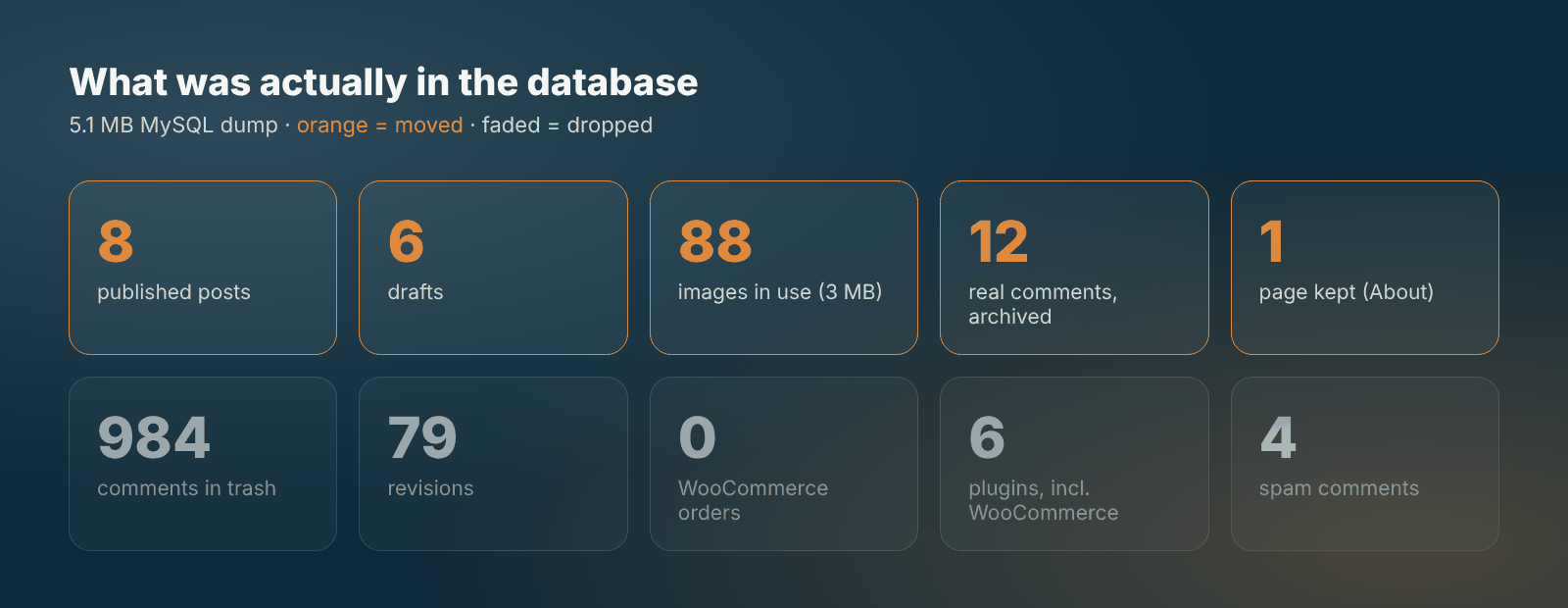
What was moved and what was dropped
| What | Count | Decision |
|---|---|---|
| Published posts | 8 | Move |
| Drafts | 6 | Move, but keep unpublished |
| Pages | About me, Categories and the WooCommerce pages | Keep About me, drop the rest |
| Approved comments | 12 | Archive as static content |
| Comments in the trash / spam | 984 / 4 | Drop |
| Images used in posts | 88 | Move, and keep the same paths |
| Revisions | 79 | Drop |
| WooCommerce | 1 product in draft, 0 orders | Drop |
WooCommerce was installed but never used, and the statistics plugin had filled tables I never looked at. The actual content was posts, a couple of pages, some comments and the images. That’s a few megabytes.
Tip: Do this before anything else. Then “migrate WordPress” turns into a short list of things to move.
Step 2 – Choosing the tools
I looked at both Astro and Hugo. Both build static sites from Markdown and both work well with Azure Static Web Apps. Hugo builds faster, but it uses Go templates. Astro templates look like HTML with a bit of JavaScript, which I find easier to read and change. With eight articles the build time doesn’t matter.
So I ended up with this:
- Astro to build the site
- A theme as a starting point, the MIT licensed Liquid Glass Blog (devlog-astro-template). In Astro a theme is just a project you copy, so all the files are yours to change.
- A private GitHub repo. It’s private because the drafts are in the repo as well.
- GitHub Actions to build and deploy
- Azure Static Web Apps on the Free plan, with preview environments for pull requests
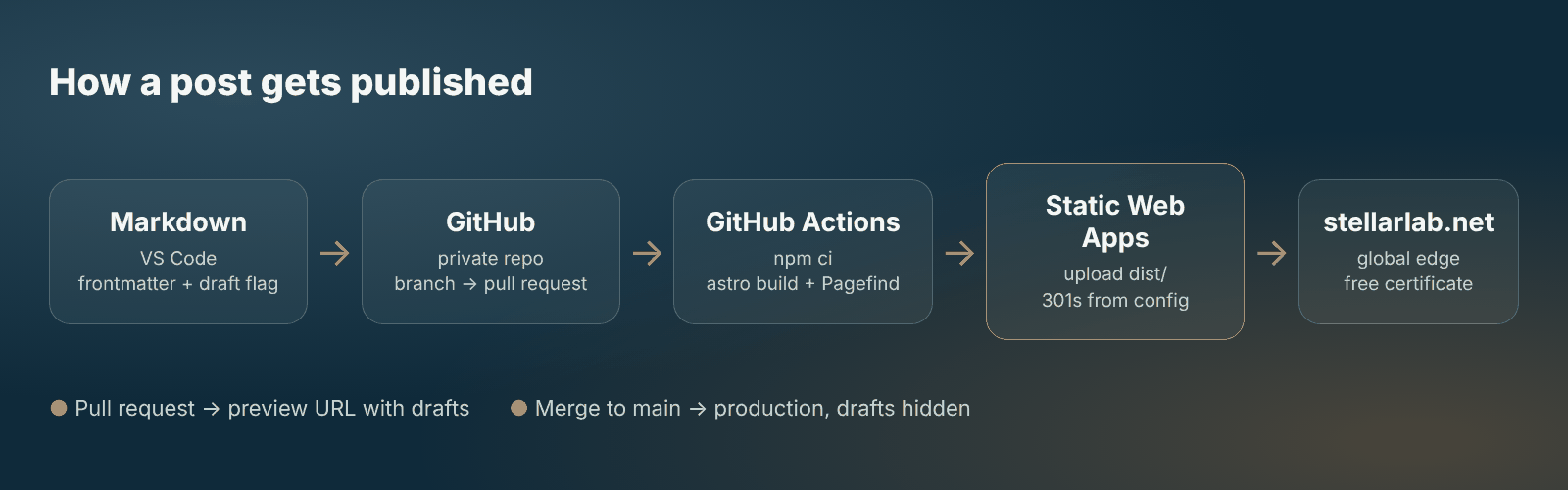
How an article gets published
Step 3 – Converting the content
WordPress stores the posts as Gutenberg blocks, which is HTML with some comments around it. This converts well to Markdown. The posts had paragraphs, headings, lists, 14 code blocks, two tables, two quotes and 85 images.
Each article is now a Markdown file with some information at the top (frontmatter).
---title: "Entra ID Identity Governance"pubDate: 2024-01-11updatedDate: 2024-02-25heroImage: "/wp-content/uploads/2022/08/azure-external-lifecycle.png"category: "Entra ID"tags: ["Microsoft 365"]---Some choices I made along the way:
- One main category for each article: Entra ID, Automation, Power Automate, Intune, Microsoft 365 or Copilot. The old categories had become a bit messy, so the rest became tags.
- Code blocks got a language (powershell, json), so the syntax highlighting works.
- Drafts get
draft: true. They are visible when I run the site locally, but not on the published site. More on that further down. - The 12 comments are kept as a static archive under the articles they belong to, with my replies indented. There are no new comments for now. Giscus (GitHub Discussions) is an option at a later point.
Step 4 – Keeping the old links
This was the part I cared most about. Old articles are linked from forums, LinkedIn and Google. WordPress used stellarlab.net/<post-name>, and the new site uses /blog/<post-name>.
The images keep their path. The 88 images in use (about 3 MB, full size originals) are placed under public/wp-content/uploads/.... Then /wp-content/uploads/2022/08/... still works, both in the articles and for anyone who has linked directly to an image.
Old addresses get a 301 redirect in staticwebapp.config.json.
{ "trailingSlash": "auto", "routes": [ { "route": "/azure-mfa-with-hardware-token", "redirect": "/blog/azure-mfa-with-hardware-token", "statusCode": 301 }, { "route": "/about-me", "redirect": "/about", "statusCode": 301 }, { "route": "/category/*", "redirect": "/categories", "statusCode": 301 }, { "route": "/feed", "redirect": "/rss.xml", "statusCode": 301 } ]}You can check the redirects with curl.exe -I.
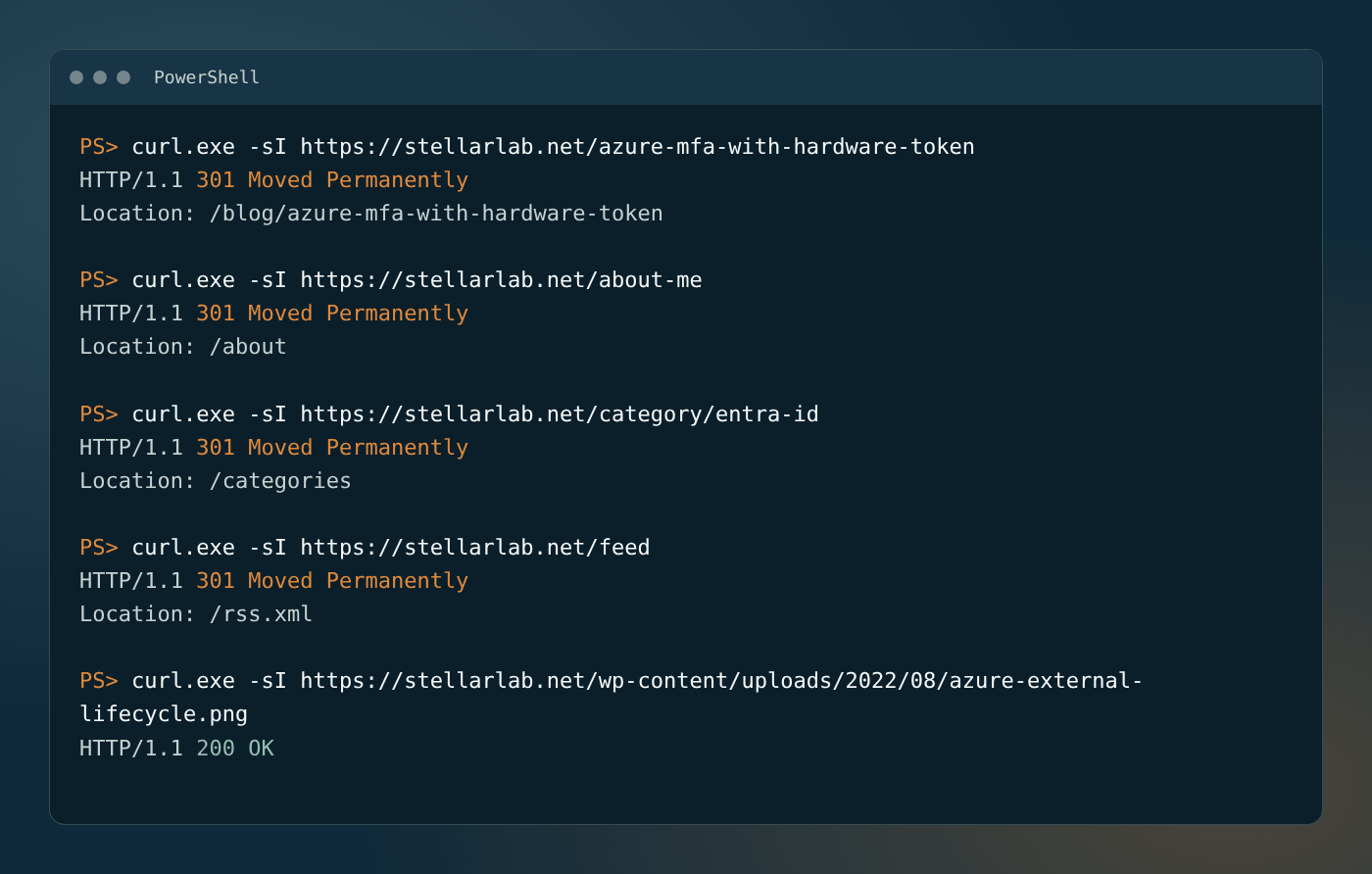
Old addresses are sent to the new ones, and old image paths still work
Step 5 – Fixing the theme
A theme from the internet is a starting point, not a finished product. I found and fixed a few things.
Dark mode in Tailwind 4. The theme used dark: classes, but didn’t tell Tailwind 4 how dark mode is switched on. Readers with light mode in their operating system got dark text on a dark background, which is close to invisible. The fix was one line in global.css, @custom-variant dark.
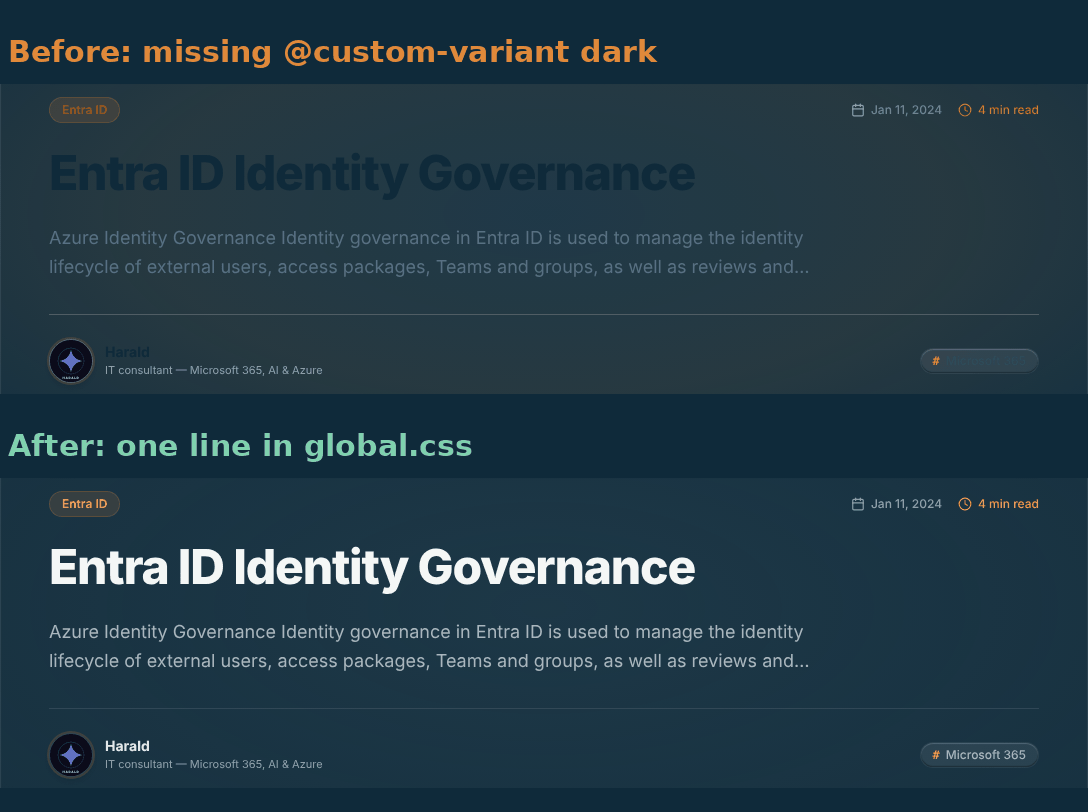
Before and after the fix
Things that didn’t do anything. A newsletter form that didn’t send anything, GitHub buttons that only pointed to github.com, and deploy files for Netlify, Vercel and Docker. They are removed.
New colours. The dark mode uses the same colours as Skard AI, fjord blue, light grey and orange. I also changed to dark text on the orange buttons. That increased the contrast from 2.7:1 to 5.5:1. Later I added a light mode as well, more on that in step 12.
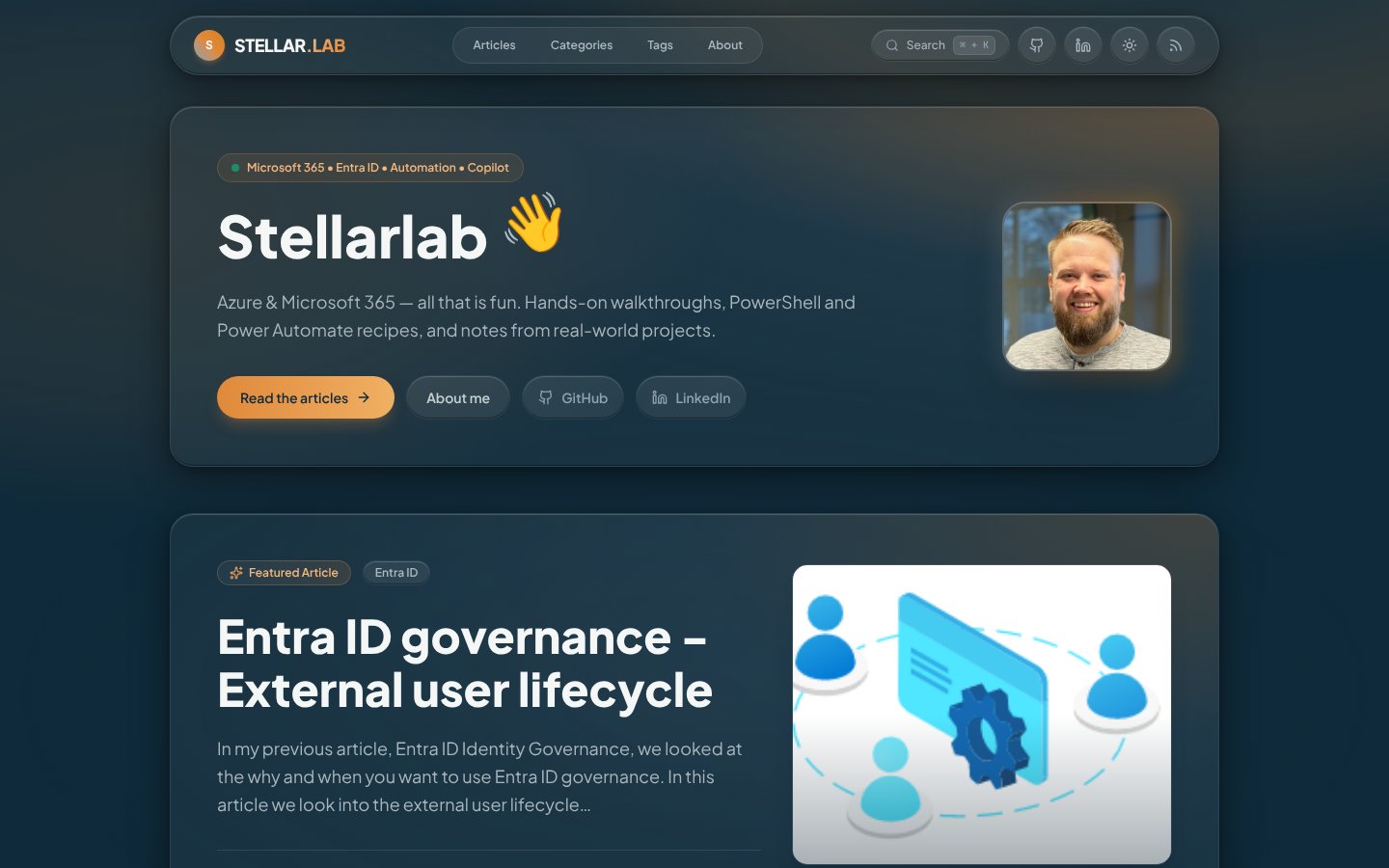
The new Stellarlab in dark mode
Step 6 – Creating the Static Web App
I used Azure CLI. I wanted the resource group in Sweden Central, but Static Web Apps is only available in a few regions, and Sweden Central isn’t one of them. The Static Web App itself is therefore in West Europe. For a static site this doesn’t matter much, as the content is served from Azure’s global network anyway.
az login
# Which regions does Static Web Apps support in my subscription?az provider show --namespace Microsoft.Web `  --query "resourceTypes[?resourceType=='staticSites'].locations | [0]" -o tsv
$rg = "<resource group name>"az group create --name $rg --location swedencentralaz staticwebapp create --name swa-stellarlab --resource-group $rg `  --location westeurope --sku Free
# Get the deployment token and put it straight into GitHub, without showing it$token = az staticwebapp secrets list --name swa-stellarlab `  --resource-group $rg --query "properties.apiKey" -o tsvgh secret set AZURE_STATIC_WEB_APPS_API_TOKEN `  --repo <owner>/<repo> --body $token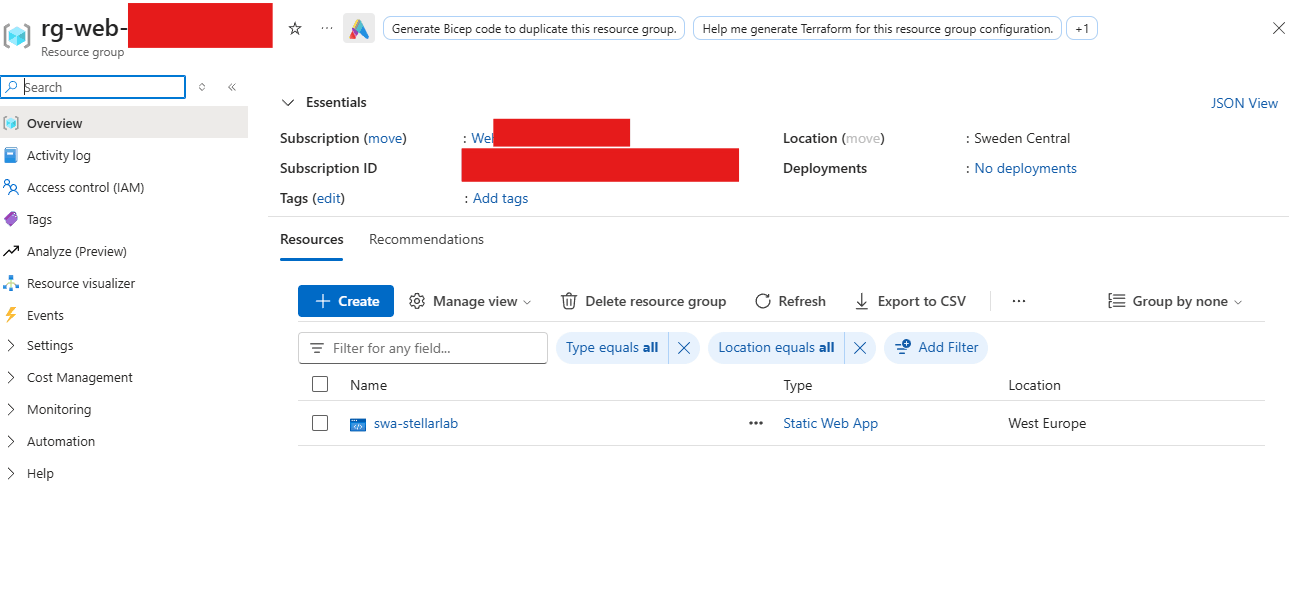
Resource group in Sweden Central, Static Web App in West Europe
I created the Static Web App without connecting it to GitHub (Other as the source). Then Azure doesn’t add its own workflow to the repo, and I use my own instead.
Step 7 – The workflow
The workflow is short. Astro builds the site, including the search index (Pagefind), and the Azure action only uploads the finished dist folder.
- name: Build site and search index  run: npm run build  env:    # Drafts show in PR previews only, never on the published site (main)    SHOW_DRAFTS: ${{ github.event_name == 'pull_request' && 'true' || 'false' }}
- name: Deploy  uses: Azure/static-web-apps-deploy@v1  with:    azure_static_web_apps_api_token: ${{ secrets.AZURE_STATIC_WEB_APPS_API_TOKEN }}    repo_token: ${{ secrets.GITHUB_TOKEN }}    action: upload    app_location: dist    skip_app_build: true
Some details that made a difference:
skip_app_build: true. I build with my own Node version, so the Azure build engine (Oryx) doesn’t have to guess.workflow_dispatchgives you a Run workflow button. That is handy for the first deploy after adding the secret.- Node 24. Astro 7.4 requires Node 22.23.4 or newer, so I moved the workflow to Node 24.
The first deploys failed. I ran the workflow manually three times, and each time it failed in the Deploy step. My first version of staticwebapp.config.json had every route twice, with and without a trailing slash (/about-me and /about-me/). Static Web Apps treats these as the same route, and with "trailingSlash": "auto" they are not needed. When I removed the duplicates, the deploy went through.
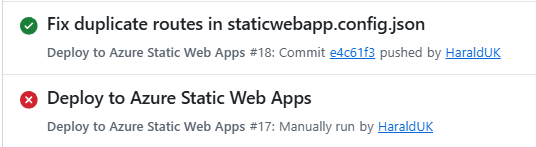
Run #17 failed, #18 went through after the duplicate routes were removed
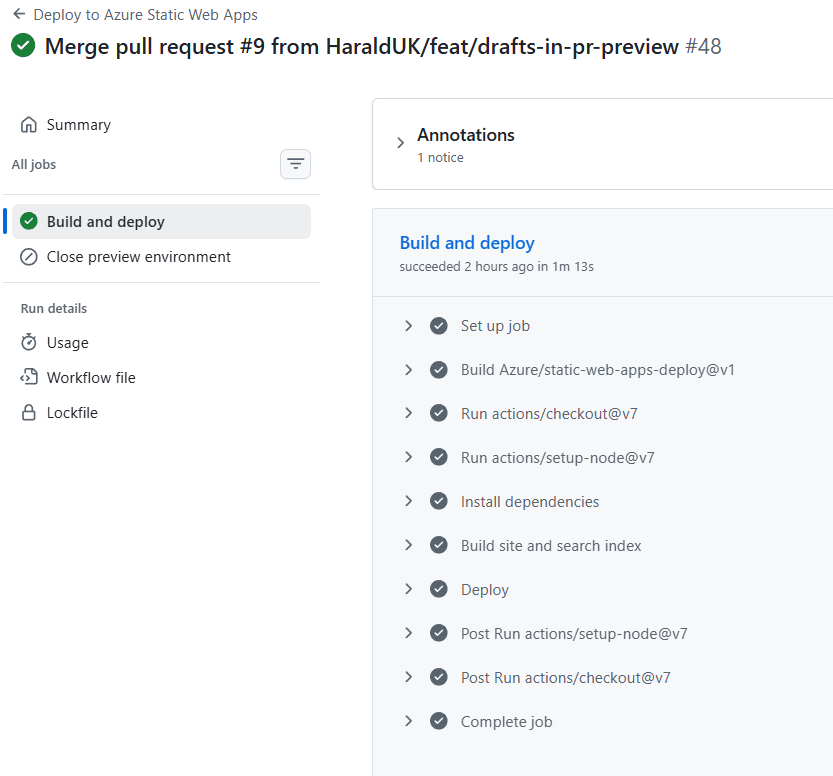
Build and deploy in GitHub Actions, about a minute
Step 8 – Drafts in the preview, but not on the site
This is the part I like the most. Static Web Apps creates a preview environment for each pull request, with its own address. If I set SHOW_DRAFTS=true only for pull requests, I can open a pull request with a draft and read it on a real address. The main branch never publishes drafts.
const showDrafts = !import.meta.env.PROD || process.env.SHOW_DRAFTS === 'true';
export async function getPosts() {  return getCollection('blog', ({ data }) => (showDrafts ? true : !data.draft));}
So the way I write now is: create a branch, write Markdown, open a pull request, read the preview and merge. This article was written that way.
Step 9 – Dependabot
When the repo was on GitHub, Dependabot opened a number of pull requests for Astro, MDX, TypeScript, actions/checkout and actions/setup-node. Because of the preview environments, each update was built and deployed to its own test address before I merged it.
Most of them went straight in. The TypeScript 7 update failed the first build, which is exactly why you want a build for each pull request. It never got near the published site. I also removed Docker from the Dependabot configuration, as there is no Dockerfile anymore.
Step 10 – The domain
The last step is to point stellarlab.net to the Static Web App. You add the domain under Custom domains, create the validation record with your DNS provider, and wait for Azure to issue the free certificate.
[Fill in: which DNS provider, apex domain vs. www, and how long the validation took.]
Step 11 – Adding a feature
A good example of why I wanted a simple site came when I read through this article in the preview. I wanted to be able to click an image to see it larger, with the page still in the background, and click outside to make it smaller again.
On WordPress I would have looked for a plugin. Here I described what I wanted to a coding assistant. The result was one small component, ImageLightbox.astro, that is added to the layout for the articles. It uses the native <dialog> element in the browser, so Esc and focus are handled without any extra code.
<dialog id="image-lightbox" class="image-lightbox" aria-label="Enlarged image"> <figure> <img src="" alt="" /> <figcaption hidden></figcaption> </figure></dialog>A short script opens the dialog when you click an image in an article, and closes it when you click anywhere or press Esc. The image is shown up to 1.5 times its normal size, and always fits inside the window.
The change went the same way as everything else. It got its own branch and pull request, I tested it on the preview address, and merged it when I was happy. Try it on the images in this article.
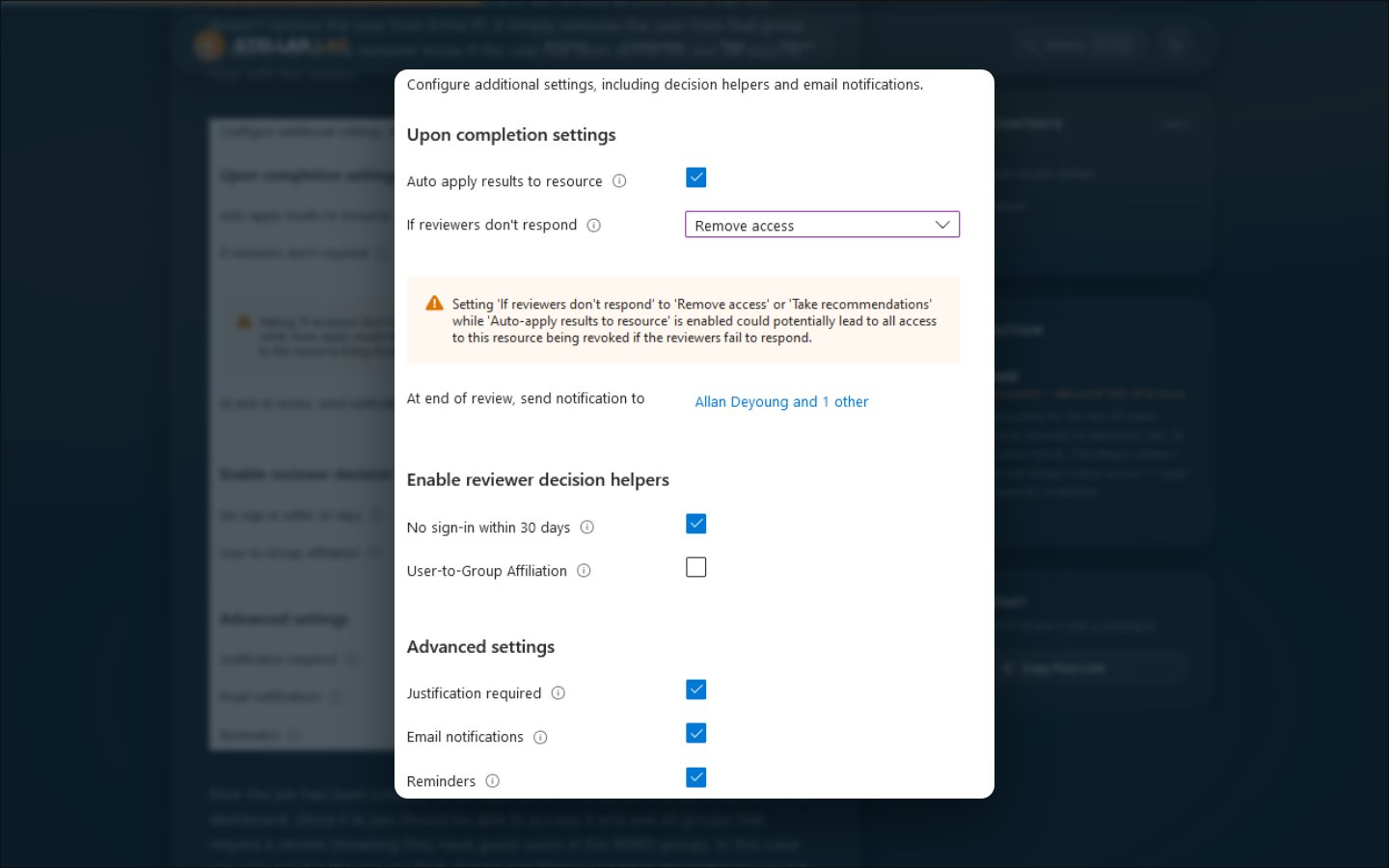
Click an image to see it larger, click anywhere to close
Step 12 – Light and dark mode
The M365 Community Roadmap runs on its own subdomain and is built with Lovable. It has a light look, with a warm off-white background, white cards and coral as the main colour. The blog was dark only. I wanted the two to feel like they belong together, and some readers simply prefer a light page.
So the blog now has both. Light mode uses the same style as the roadmap, and dark mode keeps the Skard colours. A sun and moon button in the menu switches between them. If you haven’t chosen, the site follows the setting in your operating system.
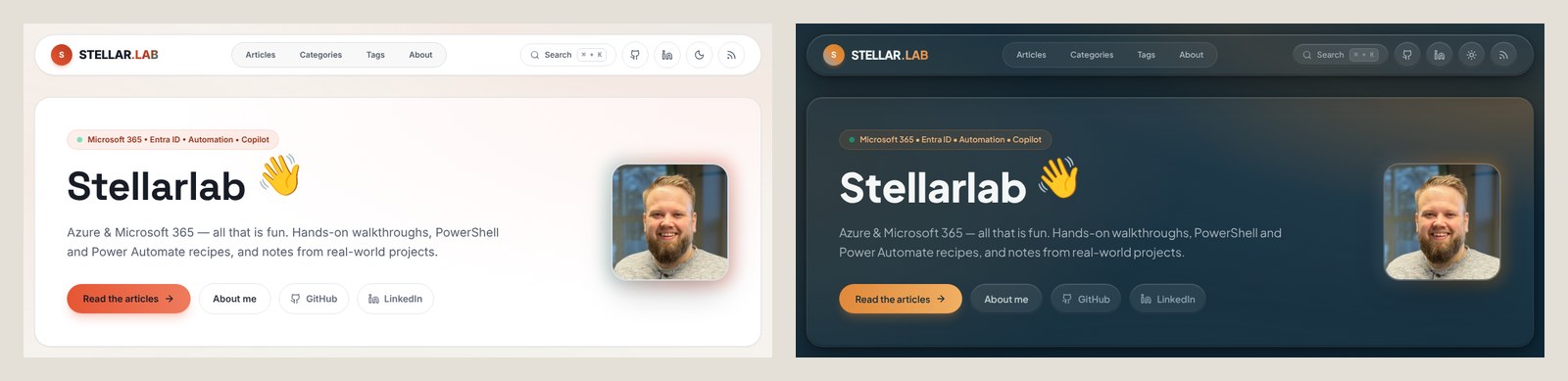
Light mode in the roadmap style, and dark mode in the Skard colours
If you are doing the same
- Start with what’s in the database. Most of a WordPress database is not content.
- Keep the image paths. Copying
wp-content/uploadstopublic/is the easiest way to avoid broken images. - Redirect all old addresses with 301, and test them with
curl -Ibefore you move DNS. - Build in your own workflow and let Azure only upload the site.
- Use the preview environments for drafts, theme changes and Dependabot.
- Keep the site simple. Then small changes, like the image zoom, are easy to make with a coding assistant and easy to review.
- Check the contrast in both modes if you add a light or dark mode to a theme that was made for only one of them.
What’s next?
- Comments, probably with Giscus
- Finishing some of the six drafts. Copilot is something I’ve been planning for a long time - maybe the code tool in M365 Copilot.
- Tying the blog closer to the M365 Community Roadmap. It’s already in the menu and shares the light look, but the content could be connected as well
The site is now a folder with Markdown files and some components. There is no server and no database to look after. New features and the next article are both a pull request away.
Join the discussion
Sign in with GitHub to comment. Comments are stored as GitHub Discussions.